This howto explains how to change the default program to open all files with a given extension on Linux Mint, Ubuntu, Debian, and most Linux distributions. It also details how to change the default application for a batch of filetypes, for example all audio files or all video files.
Set the default program for a given filetype
1. In Nemo / Nautilus / Caja, right-click on any file with the desired file type or extension, choose “Properties” from the context menu.
2. The “Properties” dialog appears. Click on the “Open With” tab.
3. Select the desired application for the given filetype. All files with the same extension will now be opened with this program by default.
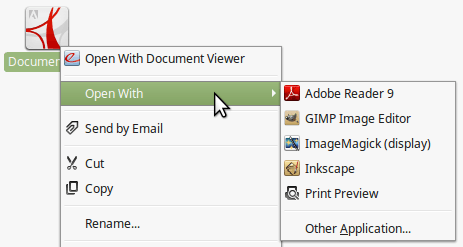
On Linux Mint, replace step one and two choosing “Open With” → “Other Application…” in the contextual menu, as seen in the picture above.
Change the default app for multiple filetypes
Changing the default application for one type of file is really easy, while changing a batch of file type associations reveals a little clumsier, but extremely efficient.
These instructions should work with a large spectrum of Linux flavours, please share your experience with your favorite distribution in the comments.
Associate all audio and video files to VLC instead of Totem media player (Movie Player)
Video files: .avi .mp4 .mpg .ogv .ogm .mkv .wmv etc. Audo files: .mp3 .ogg .flac .wav .wma etc.
Open defaults.list with gedit:gksudo gedit /usr/share/applications/defaults.list
And replace all occurrences of totem with banshee/rythmbox/vlc or the media player of your choice. (Search → Replace → Replace All)
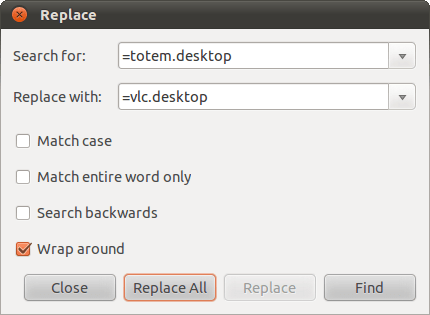
Save the modified file, and you’re done! Change are effective immediately.
Associate all office documents to LibreOffice instead of OpenOffice.org or Abiword
Office files: .odt .ods. .doc .docx .xls .xlsx etc.
Open defaults.list with gedit:gksudo gedit /usr/share/applications/defaults.list
And replace all occurences of “openoffice.org” with “libreoffice”. (Search → Replace → Replace All)
Finally, save the file. No need to restart, you’re all set!
Other file associations
Use the same technique to change the default application for all kind of file types or extensions, for example:
- all pictures (.jpg, .png, .gif, etc.) should open up with gThumb instead of EOG/Eye of Gnome/Image Viewer
- all html documents should open with Firefox instead of Chrome
- all pdf files should open with Adobe Reader instead of Evince/Document Viewer.